Guide for EasyP2P
Introduction
EasyP2P makes it possible to make payments without intermediaries. It supports both pay-ins and payouts.
The recommended way to integrate EasyP2P is to use our Hosted Cashier UI. This guide explains two ways to do this.
Hosted Cashier Integration: This solution requires only one API request to create a payment session and receive a redirect link to our Hosted Cashier UI.
-
Create a payment session with the required information about the payment.
-
Redirect the user to the link returned to complete the payment.
For payouts, there is one additional step. The payout needs to be confirmed either by using the API or the merchant portal. For security reasons, this step is mandatory for all payouts by default. Contact your account manager if this is not a required step for your payout flow.
Hybrid payment link: A hybrid solution provides the possibility to create a link to the Hosted Cashier with a preselected payment option. It requires two additional calls to our API to select the payment method and a possible suboption.
-
Create a payment session with the required information about the payment and retrieve all available payment options.
-
Get all the suboptions for the selected payment option.
-
Request a hybrid payment for the selected payment option and suboption. A URL for the Hosted Cashier is returned.
-
Redirect the user to follow the instructions and complete the payment.
The hybrid solution is at the moment not available for payouts.
Test data can be found here for testing the integration.
See also the API Reference for detailed information about each endpoint.
Hosted Cashier
Payin
Step 1. Initiate a payment session and get a link to the Hosted Cashier
Request a payment session using the payment-session endpoint. The response to this request includes a redirect URL to the Hosted Cashier UI.
See the example payload below. More details for this endpoint can be found in the API reference.
{
  "country": "TR",
  "currency": "TRY",
  "amount": 3130,
  "redirectUrl": "https://merchant.io/where-to-go",
  "language": "EN",
  "customer": {
    "name": "John Doe",
    "email": "[email protected]",
    "phone": "+34666999666",
    "userDevice": "MOBILE",
    "userAgent": "Mozilla/5.0 (X11; Linux x86_64) AppleWebKit/537.36 (KHTML, like Gecko) Chrome/51.0.2704.103 Safari/537.36",
    "ip": "84.232.140.77",
    "address": {
      "street": "32 Windsor Gardens",
      "streetNumber": "24",
      "country": "GB",
      "zipCode": "W9 3RG",
      "city": "London",
      "state": "Great London."
    }
  }
}
Response:
{
  "cashierUrl": "https://cashier.test.cyberpay.link/96f84290-2252-4c4e-be9e-0cd4ae90d52e",
  "transactionId": "96f84290-2252-4c4e-be9e-0cd4ae90d52e"
}
Step 2. Select a payment option
The user expands EasyP2P as a payment option to list all suboptions.
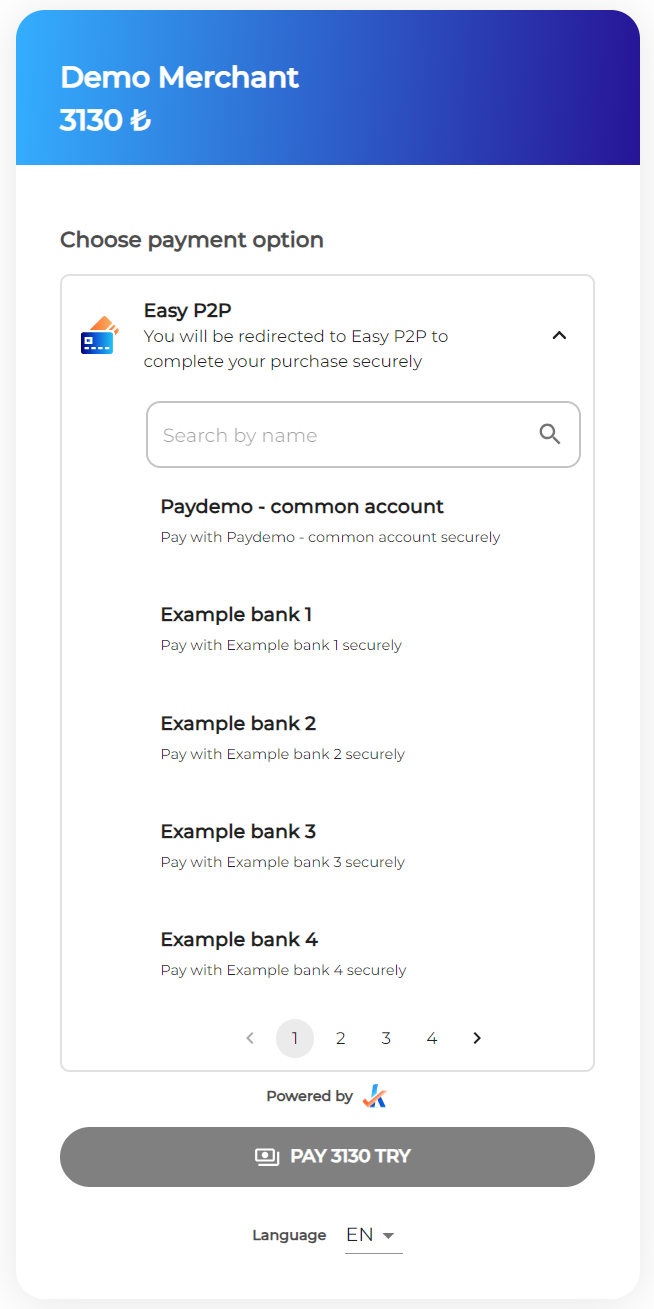
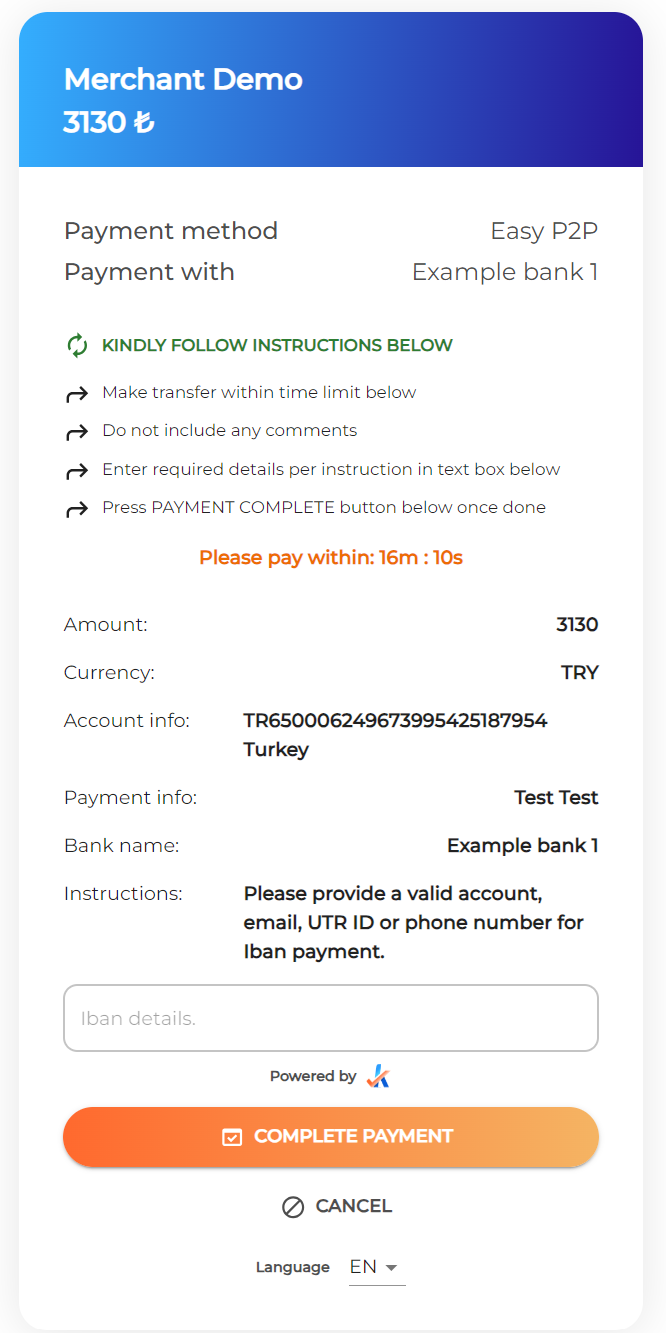
Step 3. Complete the payment
The user selects a suboption and proceeds to the next page for additional instructions. The additional information the user is asked to provide in this step will vary between payment options and countries. Test data for these values can be found here.
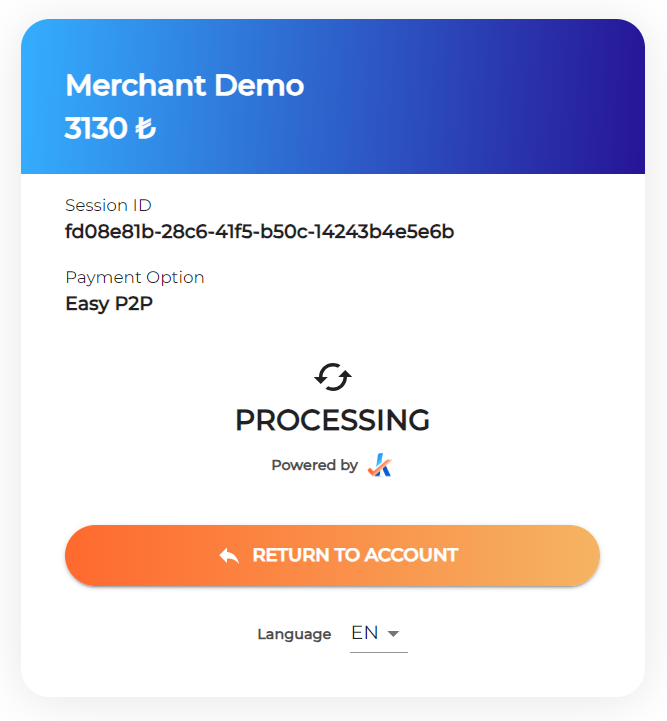
Step 4. Status page
The payment remains in processing status until the network confirms the transaction. When the user clicks “RETURN TO ACCOUNT”, they are redirected to the redirectUrl provided in step 1.
Payout
Step 1. Initiate a payout session and get a link to the Hosted Cashier
{
  "country": "TR",
  "currency": "TRY",
  "amount": 3555,
  "redirectUrl": "https://merchant1.io/where/to/go",
  "customer": {
    "name": "John Smith",
    "email": "[email protected]",
    "phone": "+25412340000",
    "ip": "84.232.140.77",
    "userAgent": "Mozilla/5.0 (X11; Linux x86_64)",
    "userDevice": "DESKTOP"
  }
}
Response:
{
  "cashierUrl": "https://cashier.test.cyberpay.link/payout/2ee3503e-ee6a-49d9-9a58-8bfe20d19aef",
  "transactionId": "2ee3503e-ee6a-49d9-9a58-8bfe20d19aef"
}
Step 2. Select a payout option
The user expands EasyP2P as a payout option to list all suboptions.
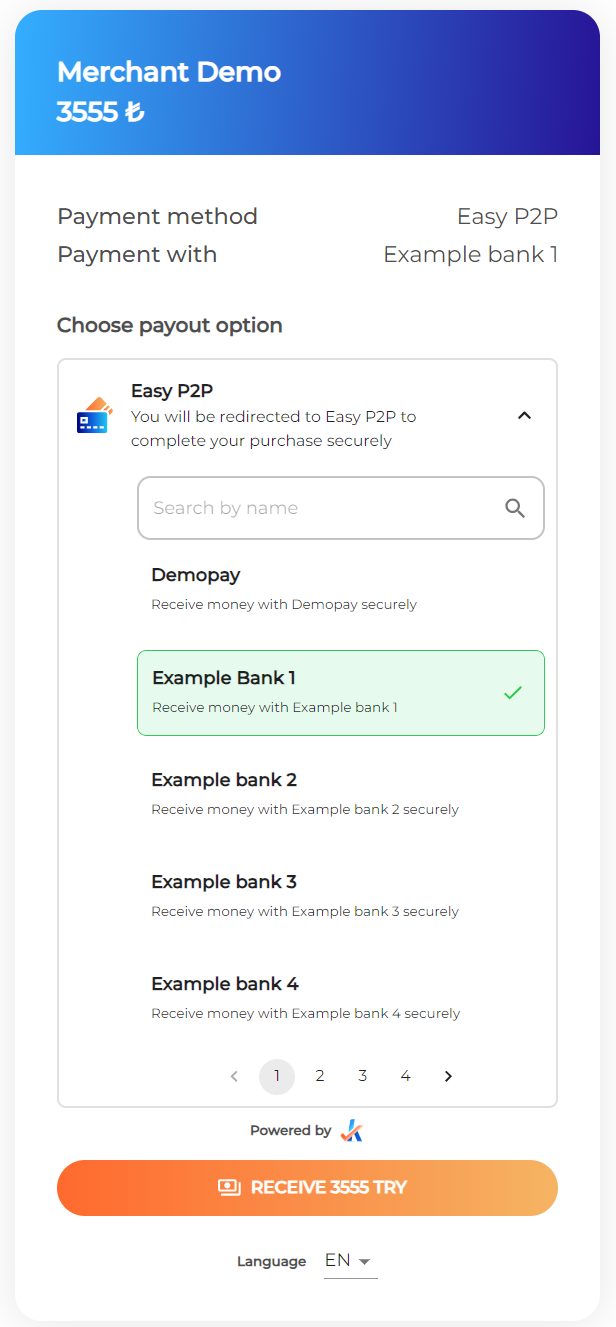
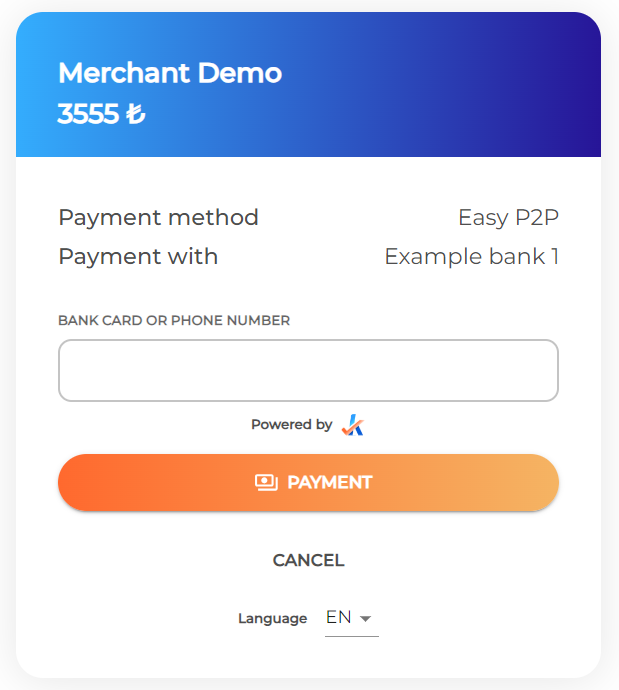
Step 3. Complete the payout
The user selects a suboption and proceeds to the next page for additional instructions. The additional information the user is asked to provide in this step will vary between payout options and countries. Test data for these values can be found here.
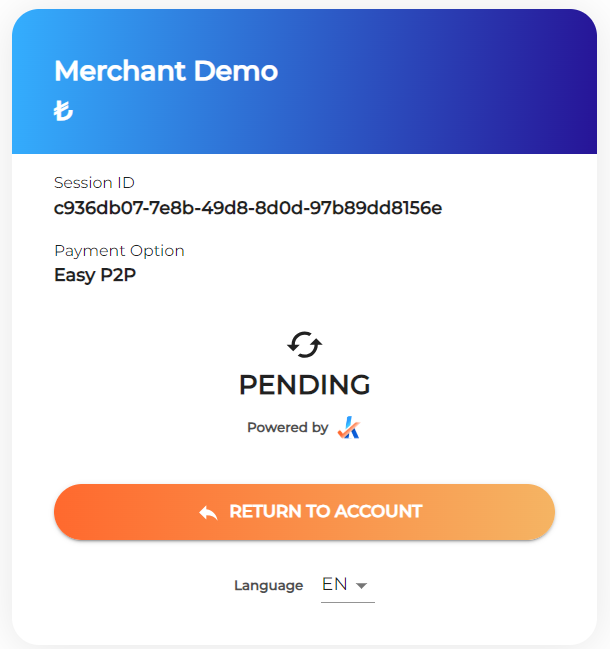
Step 4. Status page
The payout will be in a pending state until the payout is confirmed by the merchant. This can be done using the API /settle-payout or manually in the merchant portal.
Hybrid Solution
Payin
Step 1. Initiate payment and get payment options.
POST /v2/payment-options
{
  "country": "TR",
  "currency": "TRY",
  "amount": 3130,
  "redirectUrl": "https://merchant.io/where-to-go",
  "language": "EN",
  "customer": {
    "name": "John Doe",
    "email": "[email protected]",
    "phone": "+34666999666",
    "userDevice": "MOBILE",
    "userAgent": "Mozilla/5.0 (X11; Linux x86_64) AppleWebKit/537.36 (KHTML, like Gecko) Chrome/51.0.2704.103 Safari/537.36",
    "ip": "84.232.140.77",
    "address": {
      "street": "32 Windsor Gardens",
      "streetNumber": "24",
      "country": "GB",
      "zipCode": "W9 3RG",
      "city": "London",
      "state": "Great London."
    }
  },
  "paymentReference": "Invoice ABC123",
  "userId": "Merch_User_123"
}
Response: /v2/payment-options
{
  "transactionId": "ad679871-92df-42eb-bc8b-1e642b3ae9f4",
  "sessionId": "21bc3a8f-dad5-4462-ad1c-f893e11c1d01",
  "paymentOptions": [
    {
      "paymentOptionId": "f34deaf0-a854-4d12-ae6a-b309c9feb409",
      "name": "Easy P2P",
      "logo": null,
      "extraData": []
    }
  ]
}
Step 2. Get payment suboptions.
Request payment suboptions for the paymentOptionId returned in step 1.
{
  "sessionId": "21bc3a8f-dad5-4462-ad1c-f893e11c1d01",
  "paymentOptionId": "f34deaf0-a854-4d12-ae6a-b309c9feb409"
}
Response: /v2/payment-suboptions
{
  "statusCode": "085",
  "resultType": "option_choice",
  "result": {
    "paymentOptionId": "f34deaf0-a854-4d12-ae6a-b309c9feb409",
    "transactionId": "ad679871-92df-42eb-bc8b-1e642b3ae9f4",
    "sessionId": "21bc3a8f-dad5-4462-ad1c-f893e11c1d01",
    "options": [
      {
        "id": "o_482",
        "name": "Bank suboption example 1",
        "logo": null,
        "uuid": "272655df-d90e-4ffb-bf3f-f5153187e119",
        "formInputs": []
      },
      {
        "id": "o_767",
        "name": "Bank option example 2",
        "logo": null,
        "uuid": "d89b915a-7d76-49ef-9388-13c5f7f25cf1",
        "formInputs": []
      },
      {
        "id": "o_768",
        "name": "Bank option example 3",
        "logo": null,
        "uuid": "07c27905-bb4f-4189-a00e-dcf170c4be58",
        "formInputs": []
      }
    ]
  }
}
Step 3. Request a hybrid payment and get a link to the Hosted Cashier
Select a suboption (optionId) and add it to the payment request payload together with paymentOptionId and sessionId.
POST /v2/hybrid-payment
{
  "sessionId": "21bc3a8f-dad5-4462-ad1c-f893e11c1d01",
  "paymentOptionId": "f34deaf0-a854-4d12-ae6a-b309c9feb409",
  "optionId": "o_482"
}
Response: /v2/hybrid-payment
{
  "statusCode": "300",
  "resultType": "redirect",
  "result": {
    "redirectUrl": "https://cashier.test.cyberpay.link/pay?sessionId=21bc3a8f-dad5-4462-ad1c-f893e11c1d01",
    "transactionId": "ad679871-92df-42eb-bc8b-1e642b3ae9f4"
  }
}
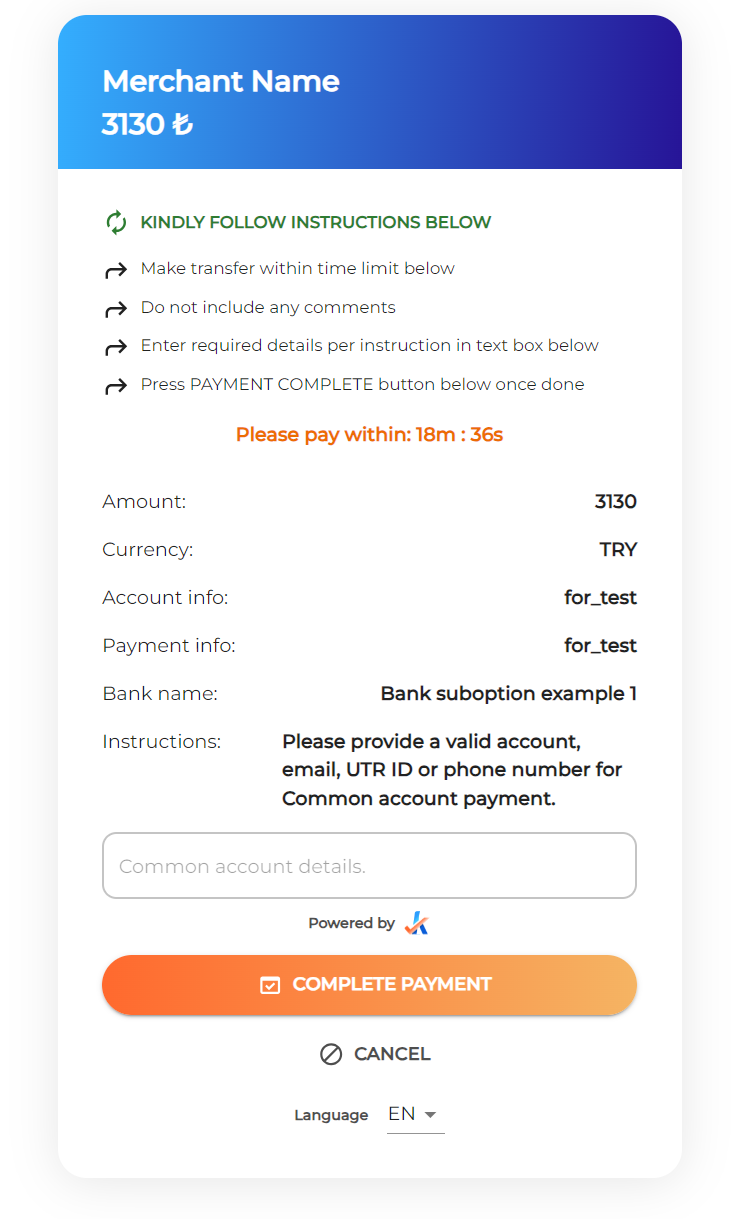
Step 4. User completes the payment
Redirect the user to the Hosted Cashier using the redirectUrl in the response to complete the payment. The additional information the user is asked to provide in this step will vary between payment options and countries. Test data for these values can be found here.
Step 5. Status page
The payment remains in processing status until the network confirms the transaction. When the user clicks “RETURN TO ACCOUNT”, they are redirected to the redirectUrl provided in step 1.
Payout
Hybrid Payout for EasyP2P is not available at the moment.